

Microsoft Office Installation Stuck? 12 Proven Fixes That Work
Microsoft Office installation stuck, frozen, or failing? Learn 12 proven fixes for Office installation errors, activation issues, and setup problems on Windows PCs.
TROUBLESHOOTING & FIXES
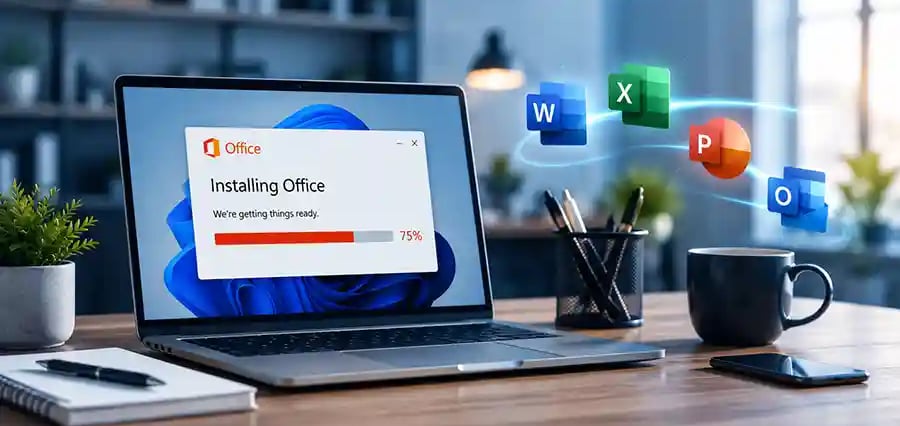
Office Installation Stuck? 12 Proven Fixes That Actually Work
Common Microsoft Office Installation Problems and Step-by-Step Solutions
Installing Microsoft Office should be quick and straightforward. However, many users encounter situations where the installation freezes, stalls at a certain percentage, displays error messages, or never completes successfully.
If your Office installation is stuck, you're not alone. Common issues such as internet interruptions, outdated Windows components, conflicting software, and remnants of previous Office versions can prevent installation from completing.
The good news is that most Microsoft Office installation problems can be resolved without advanced technical skills. In this guide, we'll walk through the most common causes and provide proven solutions that can help you get Office running smoothly again.
Signs Your Office Installation Is Stuck
You may be experiencing an installation problem if:
Office setup remains at 2%, 51%, 75%, or another percentage for an extended period.
The message "We're getting things ready" appears for hours.
The installer closes unexpectedly.
Error codes repeatedly appear during installation.
Office applications fail to launch after installation.
Installation repeatedly restarts or freezes.
If any of these symptoms sound familiar, the troubleshooting steps below can help.
Why Does Microsoft Office Installation Get Stuck?
Several system components work together during Office installation. If one of them encounters a problem, the installation may freeze or fail.
Common causes include:
Unstable internet connection
Corrupted installation files
Outdated Windows updates
Conflicts with older Office versions
Antivirus software interference
Insufficient disk space
Permission-related issues
Corrupted Windows system files
Identifying the underlying cause is often the fastest way to resolve the issue.
1. Check Your Internet Connection
Modern Microsoft Office versions use Click-to-Run technology, which downloads installation files during setup. A slow or unstable internet connection may cause the installation to appear frozen. To resolve this:
Restart your modem or router.
Use a wired connection if available.
Pause large downloads or streaming services.
Run a speed test to verify stability.
Once your connection is stable, restart the installation.
2. Restart Your Computer
A simple restart can eliminate temporary system conflicts. Pending Windows updates, background applications, or locked files can interfere with Office installation.
Before trying again:
Restart your computer.
Close unnecessary applications.
Disable startup programs if needed.
Then launch the installer again.
3. Remove Previous Office Versions
Older Office installations are one of the most common causes of setup failures. Even after uninstalling Office, leftover files and registry entries may remain on your system and create conflicts.
If you've previously used:
Office 2016
Office 2019
Microsoft 365
Office 2021
it's recommended to completely remove old versions before installing a new one.
4. Install the Latest Windows Updates
Microsoft Office depends on several Windows services and components. Missing updates can cause installation errors or prevent setup from completing.
Open Windows Update and install all available:
Security updates
Feature updates
.NET Framework updates
Servicing stack updates
Restart your computer after updating and try the installation again.
5. Temporarily Disable Antivirus Software
Some antivirus programs mistakenly block Office installation files. Security software may interrupt Click-to-Run services or quarantine files required during setup. Temporarily disable your antivirus software and attempt the installation again. Remember to re-enable protection immediately after installation is complete.
6. Verify Available Disk Space
Insufficient storage can cause Office installation to freeze unexpectedly.
Before installing:
Delete temporary files.
Empty the Recycle Bin.
Remove unused applications.
Ensure several gigabytes of free space are available.
A clean system improves installation reliability and overall performance.
7. Run the Installer as Administrator
Permission-related issues can prevent Office from installing correctly. To run the installer with elevated privileges:
Locate the installation file.
Right-click the file.
Select "Run as Administrator."
This often resolves installation problems caused by restricted system permissions.
8. Use Microsoft's Official Repair Tools
Microsoft provides dedicated troubleshooting tools designed specifically for Office installation problems.
These tools can:
Detect installation conflicts
Repair corrupted Office files
Fix activation issues
Restore Click-to-Run services
Using official repair tools can save significant troubleshooting time.
9. Repair Windows System Files
Sometimes the problem isn't Office itself. Corrupted Windows files can prevent software from installing properly. Windows includes built-in repair utilities that can scan and automatically repair damaged system files. Running these tools can resolve hidden operating system issues affecting Office installation.
🔐 About Genuine Softwares
We provide 100% genuine and verified software licenses at affordable prices. Instant delivery, secure payments, and reliable customer support — helping you stay protected and productive.
🛒 Popular Products
Explore some of our most popular genuine software licenses trusted by thousands of users.
🔎 Search Software
📩 Subscribe
📚 Blog Categories
Browse our helpful guides and tutorials to learn more about installing, activating, and using genuine software effectively.
Helpful tutorials for installing, activating, optimizing, and managing Microsoft Windows.
Helpful tutorials for installing and using Microsoft Office applications.
Learn how to choose the right software license for home or business.
Tips to keep your computer safe from malware, viruses, and cyber threats.
Compare different software versions to find the best option for your needs.
Quick solutions for software errors, installation issues, activation problems, performance fixes.
⭐ Why Choose Genuine Softwares?
We focus on delivering trusted, affordable, and genuine software solutions for individuals and businesses worldwide.
✔ 100% Genuine Software Licenses
✔ Instant Digital Delivery
✔ Secure Payment Methods
✔ Affordable Prices
✔ Activation Support Available
10. Try an Offline Office Installer
If online installation repeatedly fails, an offline installer may help. Offline installers download all required files before installation begins.
Benefits include:
Faster installation
Reduced internet dependency
Fewer interruptions
Improved reliability on slow networks
Many installation issues disappear when using an offline installer.
11. Fix Office Error Code 30015
Error Code 30015 usually indicates corrupted installation files or conflicts with previous Office installations.
Solutions include:
Removing old Office versions
Running Microsoft's repair tool
Restarting the installation process
Updating Windows
12. Fix Office Error Code 30125 and 0-2031
These error codes are commonly associated with:
Damaged installation files
Network interruptions
Antivirus interference
Click-to-Run service issues
Try:
Disabling antivirus software temporarily
Restarting your internet connection
Downloading a fresh installer
Using an offline installation package
Quick Troubleshooting Table
ProblemLikely CauseRecommended FixInstallation stuck at 75%Internet interruptionRestart installationError 30015Corrupted filesRun repair toolOffice won't launchIncomplete installationReinstall OfficeSetup frozenOld Office conflictRemove previous versionInstallation taking too longSlow connectionUse offline installer
Frequently Asked Questions
Why is Office stuck at "We're getting things ready"?
This usually happens because of internet interruptions, corrupted installation files, or conflicts with older Office versions.
How long should Microsoft Office installation take?
Most installations complete within 10–30 minutes, depending on internet speed and computer performance.
Can antivirus software block Office installation?
Yes. Some security programs can mistakenly block installation files or Click-to-Run services.
Can I install Office without internet?
Yes. Microsoft offers offline installation options for many Office products.
What causes Office installation failures?
The most common causes include outdated Windows components, network interruptions, software conflicts, insufficient storage, and corrupted installation files.
Need a Genuine Microsoft Office License?
If installation or activation issues are caused by an invalid, expired, or non-genuine product key, using a legitimate Microsoft Office license can save hours of troubleshooting.
At GenuineSoftwareKey.com, we provide:
Genuine Microsoft Office licenses
Instant digital delivery
Secure activation
Affordable pricing
Customer installation assistance
Using genuine software helps ensure reliable updates, improved security, and long-term stability.
Final Thoughts
A stuck Microsoft Office installation can be frustrating, but most issues can be resolved by addressing common causes such as internet problems, outdated Windows components, conflicting software, or remnants of previous Office installations.
By following the troubleshooting steps outlined above, you can resolve most Office installation errors and get back to work quickly. Maintaining an updated system, using genuine software, and following recommended installation practices will help ensure a smooth and trouble-free Office experience.
Genuine
Authentic Microsoft Software Solutions at Unbeatable Prices, Instant Delivery, Trusted Worldwide.
Support & Contact
Newsletter
customercare@genuinesoftwarekeys.com
+960 796 4737
© 2026. Genuine Software Keys. All rights reserved.
100% Genuine Software


Genuine License Guaranteed






Instant Delivery
Secure Payments
24/7 Customer Support
via Email
SSL Encrypted
We’re Here Anytime


Software Keys
Subscribe Now & Unlock Exclusive Deals, Special Discounts, and the Latest Offers.
Available 24/7 – Get a Response Within 2 Minutes, Anytime You Need Us.
Popular Products


We Accept




✔ No Spam
✔ Special Offers
✔ Early Access Details
SSL Secured


Your data is safe with us
Delivery Policy | Terms and Conditions
Microsoft Office 365 Professional Plus