

Microsoft Excel vs Google Sheets – Which Spreadsheet Tool Is Better?
Compare Microsoft Excel vs Google Sheets in 2026. Discover differences in features, collaboration, performance, pricing, and which spreadsheet tool is best for you.
PRODUCT COMPARISONS

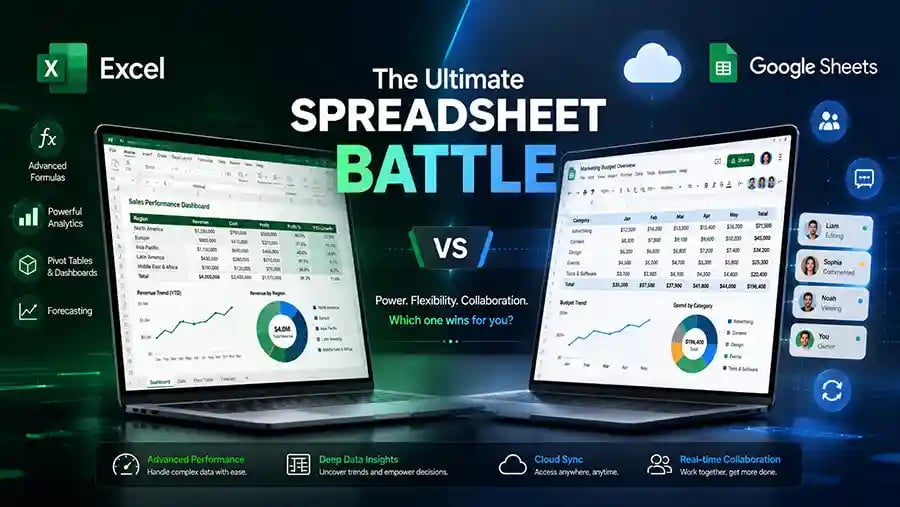
Microsoft Excel vs Google Sheets – Which Spreadsheet Tool Is Best in 2026?
A Complete Comparison of Features, Performance, Collaboration, and Real-World Usage
Spreadsheets have become an essential part of modern work, whether you’re managing business finances, tracking inventory, analyzing data, or organizing personal tasks. But when it comes to choosing the best spreadsheet software, two names dominate the conversation: Microsoft Excel and Google Sheets.
Both tools are powerful, widely used, and trusted by millions of users worldwide. However, they are designed with different priorities in mind. One focuses on advanced performance and professional-grade functionality, while the other emphasizes simplicity, cloud access, and collaboration.
So which one should you use?
This detailed guide breaks down the differences between Excel and Google Sheets in a practical, real-world way—helping students, businesses, freelancers, and professionals choose the right tool for their workflow.
Understanding the Core Difference Between Excel and Google Sheets
At first glance, both platforms may seem similar. They allow you to create spreadsheets, use formulas, generate charts, and organize data.
But the philosophy behind them is very different.
Microsoft built Excel primarily as a powerful desktop-based spreadsheet solution for advanced calculations, large datasets, automation, and enterprise-level analysis.
Meanwhile, Google designed Google Sheets as a cloud-first collaborative platform where multiple users can work together in real time from anywhere.
This difference affects almost every aspect of how the software performs.
User Interface and Ease of Use
For beginners, Google Sheets often feels simpler and less intimidating.
Its clean interface, minimal menus, and browser-based access make it easy for students and casual users to start working immediately. Since everything runs online, there’s no complicated installation process.
Excel, however, offers a more feature-rich interface with advanced menus, ribbons, and customization tools. At first, this can feel overwhelming—but for experienced users, it provides far greater control and flexibility.
If you’re completely new to spreadsheets, Google Sheets may feel more approachable. But as your work becomes more advanced, Excel’s depth becomes extremely valuable.
Performance: Which One Handles Large Data Better?
This is where Excel clearly takes the lead.
Excel is designed to process massive datasets efficiently. Businesses, accountants, analysts, and engineers often rely on Excel because it can handle complex calculations, pivot tables, macros, and advanced formulas much faster.
Google Sheets works well for smaller to medium-sized projects, but performance can slow down significantly with very large files or complex formulas.
If your work involves heavy data analysis, financial modeling, or large databases, Excel is usually the better choice.
Cloud Access and Collaboration
Google Sheets shines when it comes to collaboration.
Because it’s cloud-based, multiple users can edit the same spreadsheet simultaneously in real time. Changes appear instantly, making teamwork incredibly smooth.
This is especially useful for remote teams, classrooms, and collaborative projects.
Excel also supports cloud collaboration through OneDrive and Microsoft 365, but the experience is generally not as seamless as Google Sheets for real-time teamwork.
If collaboration is your top priority, Google Sheets has a strong advantage.
🔐 About Genuine Softwares
We provide 100% genuine and verified software licenses at affordable prices. Instant delivery, secure payments, and reliable customer support — helping you stay protected and productive.
🛒 Popular Products
Explore some of our most popular genuine software licenses trusted by thousands of users.
🔎 Search Software
📩 Subscribe
📚 Blog Categories
Browse our helpful guides and tutorials to learn more about installing, activating, and using genuine software effectively.
Helpful tutorials for installing, activating, optimizing, and managing Microsoft Windows.
Helpful tutorials for installing and using Microsoft Office applications.
Learn how to choose the right software license for home or business.
Tips to keep your computer safe from malware, viruses, and cyber threats.
Compare different software versions to find the best option for your needs.
Quick solutions for software errors, installation issues, activation problems, performance fixes.
⭐ Why Choose Genuine Softwares?
We focus on delivering trusted, affordable, and genuine software solutions for individuals and businesses worldwide.
✔ 100% Genuine Software Licenses
✔ Instant Digital Delivery
✔ Secure Payment Methods
✔ Affordable Prices
✔ Activation Support Available
Offline Access and Reliability
One major advantage of Excel is offline performance.
You can work on files anytime without needing an internet connection, and everything runs directly on your computer for maximum speed and stability.
Google Sheets does support offline mode, but it still relies heavily on browser functionality and synchronization. In unstable internet environments, this can sometimes become inconvenient.
For professionals who frequently work offline or travel often, Excel provides a more dependable experience.
Advanced Features and Automation
Excel is known for its advanced capabilities.
Features like Power Query, Power Pivot, VBA macros, and advanced statistical tools make it the preferred choice for professionals handling complex workflows.
Google Sheets supports automation through Google Apps Script, but it doesn’t offer the same depth or performance level as Excel.
For simple calculations and tracking, both tools work perfectly. But for advanced business operations, Excel remains unmatched.
Pricing and Accessibility
Google Sheets has a major advantage here—it’s free for most users.
Anyone with a Google account can start using it instantly without paying anything. This makes it ideal for students, startups, and small teams.
Excel, on the other hand, often requires a subscription through Microsoft 365 or a standalone purchase.
However, many businesses consider the cost worthwhile because of the advanced tools and professional features Excel provides.
Compatibility and File Support
Excel has been the industry standard for decades, which means compatibility is excellent across businesses and organizations.
Complex formatting, formulas, and macros usually work best within Excel itself.
Google Sheets can open Excel files, but sometimes advanced formatting or formulas may not transfer perfectly.
If you regularly exchange spreadsheets with companies or professional teams, Excel compatibility can become very important.
Security and Data Protection
Both platforms offer strong security, but they approach it differently.
Excel files stored locally give users direct control over their data. Businesses with strict privacy policies often prefer this approach.
Google Sheets relies on cloud storage and Google’s security infrastructure. While highly secure, some organizations may still prefer keeping sensitive data offline.
Your ideal choice depends on your organization’s security requirements and workflow preferences.
Which Tool Is Better for Students?
For students, Google Sheets is often more convenient.
It’s free, easy to use, accessible from anywhere, and excellent for group projects. Integration with other Google tools also makes collaboration smoother.
However, students learning advanced data analysis, accounting, or business skills may benefit more from mastering Excel, since it’s widely used in professional environments.
Which Tool Is Better for Businesses?
For small teams focused on collaboration and simplicity, Google Sheets works very well.
But for larger organizations dealing with detailed reports, automation, analytics, and enterprise workflows, Excel remains the professional standard.
Many businesses actually use both tools together—Google Sheets for collaboration and Excel for advanced analysis.
Final Verdict: Excel or Google Sheets?
The best spreadsheet tool depends entirely on your needs.
If you value advanced features, speed, professional analysis, and offline performance, Excel is the stronger option.
If you prioritize collaboration, accessibility, simplicity, and cost-effectiveness, Google Sheets is incredibly powerful.
Neither tool is universally “better.” The smartest choice is the one that fits your workflow, your team, and your long-term goals.
Genuine
Authentic Microsoft Software Solutions at Unbeatable Prices, Instant Delivery, Trusted Worldwide.
Support & Contact
Newsletter
customercare@genuinesoftwarekeys.com
+960 796 4737
© 2026. Genuine Software Keys. All rights reserved.
100% Genuine Software


Genuine License Guaranteed






Instant Delivery
Secure Payments
24/7 Customer Support
via Email
SSL Encrypted
We’re Here Anytime


Software Keys
Subscribe Now & Unlock Exclusive Deals, Special Discounts, and the Latest Offers.
Available 24/7 – Get a Response Within 2 Minutes, Anytime You Need Us.
Popular Products


We Accept




✔ No Spam
✔ Special Offers
✔ Early Access Details
SSL Secured


Your data is safe with us
Delivery Policy | Terms and Conditions
Microsoft Office 365 Professional Plus