

How to Make Your PC Faster Without Upgrading Hardware (Windows Speed Guide)
Boost your PC speed without upgrading hardware. Learn proven tips to optimize Windows performance, reduce lag, and make your computer faster instantly.
WINDOWS GUIDES
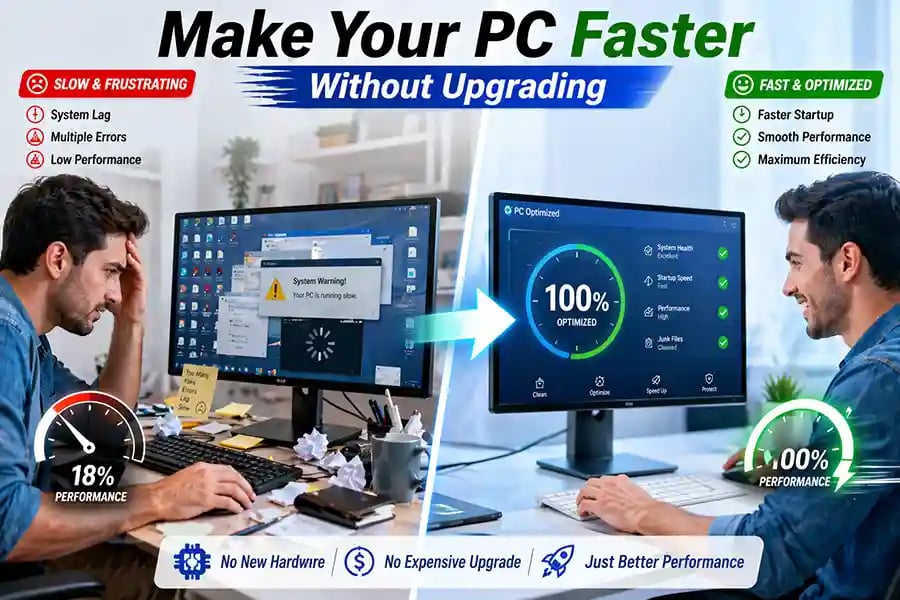
How to Make Your PC Faster Without Upgrading Hardware
Smart Optimization Techniques to Boost Speed Instantly
A slow computer can be incredibly frustrating—apps take forever to open, browsers lag, and even simple tasks feel like hard work. The good news is that you don’t always need to spend money on new hardware to fix this. With the right techniques, you can significantly improve your system’s performance and make it feel fast again, whether you’re using Windows 10 or Windows 11.
This guide walks you through practical, proven methods to speed up your PC without upgrading any physical components—just smarter use of what you already have.
Unlocking Hidden Performance in Your Existing Computer
Most computers slow down over time not because they’re outdated, but because they become overloaded with unnecessary processes, startup programs, and background activity. The first step to improving performance is cleaning up what’s already running.
When you install new software, many applications automatically add themselves to your startup list. This means every time you turn on your PC, multiple programs launch in the background—even if you don’t use them. Over time, this creates a heavy load that slows down boot time and overall responsiveness.
By reviewing and disabling unnecessary startup programs through Task Manager, you can dramatically reduce load times and free up system resources. The difference is often noticeable immediately after a restart.
Another common issue is cluttered storage. Temporary files, cache data, and leftover installation files quietly accumulate in your system. These files may seem harmless, but they can slow down performance and reduce available disk space. Using built-in cleanup tools or system storage settings to remove unnecessary files can instantly improve responsiveness.
Managing Background Processes for Better Speed
Behind the scenes, your computer is constantly running processes that you may not even be aware of. Some are essential, but many are not. Too many background processes can consume RAM and CPU power, leaving less available for the tasks you actually care about.
Opening Task Manager and identifying resource-heavy applications allows you to close or uninstall programs that are no longer needed. This is especially important for software that runs continuously in the background, such as auto-updaters or unused utilities.
You’ll often find that just reducing background activity can make your system feel significantly faster and more responsive.
Optimizing Visual Effects Without Losing Style
Modern versions of Windows include animations, transparency effects, and visual enhancements designed to improve the user experience. While these features look great, they can consume valuable system resources—especially on older or lower-end machines.
Adjusting visual effects settings to prioritize performance over appearance can provide a noticeable speed boost. This doesn’t mean your system has to look outdated—you can strike a balance by disabling only the most resource-intensive effects while keeping the interface clean and modern.
🔐 About Genuine Softwares
We provide 100% genuine and verified software licenses at affordable prices. Instant delivery, secure payments, and reliable customer support — helping you stay protected and productive.
🛒 Popular Products
Explore some of our most popular genuine software licenses trusted by thousands of users.
🔎 Search Software
📩 Subscribe
📚 Blog Categories
Browse our helpful guides and tutorials to learn more about installing, activating, and using genuine software effectively.
Helpful tutorials for installing, activating, optimizing, and managing Microsoft Windows.
Helpful tutorials for installing and using Microsoft Office applications.
Learn how to choose the right software license for home or business.
Tips to keep your computer safe from malware, viruses, and cyber threats.
Compare different software versions to find the best option for your needs.
Quick solutions for software errors, installation issues, activation problems, performance fixes.
⭐ Why Choose Genuine Softwares?
We focus on delivering trusted, affordable, and genuine software solutions for individuals and businesses worldwide.
✔ 100% Genuine Software Licenses
✔ Instant Digital Delivery
✔ Secure Payment Methods
✔ Affordable Prices
✔ Activation Support Available
Keeping Your System Updated and Clean
It might seem counterintuitive, but keeping your system updated is one of the easiest ways to maintain performance. Updates for Microsoft Windows often include performance improvements, bug fixes, and security patches that help your system run more efficiently.
At the same time, it’s important to remove software you no longer use. Many users install programs and forget about them, allowing them to take up space and resources indefinitely. Regularly reviewing your installed applications and uninstalling unnecessary ones can free up both storage and processing power.
Improving Browser Performance
For many users, the web browser is where most of the slowdown happens. Too many open tabs, heavy extensions, and cached data can quickly drag down performance.
Switching to a more efficient browser like Google Chrome or Microsoft Edge (and managing extensions carefully) can make a big difference. Clearing cache, limiting active tabs, and disabling unused extensions helps your browser run smoothly.
Since browsers consume a large portion of system memory, optimizing them alone can dramatically improve overall system speed.
Defragmentation and Storage Optimization
If you’re using a traditional hard drive (HDD), file fragmentation can slow down data access. Running disk defragmentation reorganizes your files, allowing your system to read them more efficiently.
Windows includes built-in tools that automatically optimize your drives, but running them manually from time to time ensures your system stays in peak condition. For SSD users, Windows handles optimization differently, so there’s no need for manual defragmentation.
Adjusting Power Settings for Maximum Performance
Many computers are set to “Balanced” or “Power Saver” mode by default, which limits performance to conserve energy. Switching to “High Performance” mode allows your system to use its full potential, improving speed and responsiveness.
This is especially useful for laptops when plugged in, as it ensures you’re getting the best performance possible during demanding tasks.
Reducing Startup and Login Delays
A slow startup is one of the most noticeable signs of a sluggish PC. In addition to disabling startup programs, you can also speed up login times by minimizing background services and keeping your system clean.
Fast startup settings in Windows can also help reduce boot time, allowing your system to become ready for use much quicker.
Creating a Habit of Regular Maintenance
The secret to a fast PC isn’t just one-time optimization—it’s consistency. Performing regular maintenance, such as cleaning temporary files, updating software, and reviewing startup programs, ensures your system stays fast over time.
Think of it like maintaining a car. Small, regular improvements prevent bigger performance issues down the line.
Final Thoughts: Speed Without Spending
You don’t need expensive upgrades to enjoy a fast and responsive computer. By making smart adjustments and maintaining your system properly, you can unlock hidden performance and extend the life of your PC.
A well-optimized system not only runs faster but also feels smoother, more reliable, and more enjoyable to use every day.


Genuine
Authentic Microsoft Software Solutions at Unbeatable Prices, Instant Delivery, Trusted Worldwide.
Support & Contact
Newsletter
customercare@genuinesoftwarekeys.com
+960 796 4737
© 2026. Genuine Software Keys. All rights reserved.
100% Genuine Software


Genuine License Guaranteed






Instant Delivery
Secure Payments
24/7 Customer Support
via Email
SSL Encrypted
We’re Here Anytime


Software Keys
Subscribe Now & Unlock Exclusive Deals, Special Discounts, and the Latest Offers.
Available 24/7 – Get a Response Within 2 Minutes, Anytime You Need Us.
Popular Products


We Accept




✔ No Spam
✔ Special Offers
✔ Early Access Details
SSL Secured


Your data is safe with us
Delivery Policy | Terms and Conditions
Microsoft Office 365 Professional Plus