
How to Install Windows 10 on Any PC – Step-by-Step Beginner Guide (2026)
Learn how to install Windows 10 on any PC with this complete step-by-step guide. Includes USB setup, BIOS boot, installation tips, and troubleshooting.
WINDOWS GUIDES
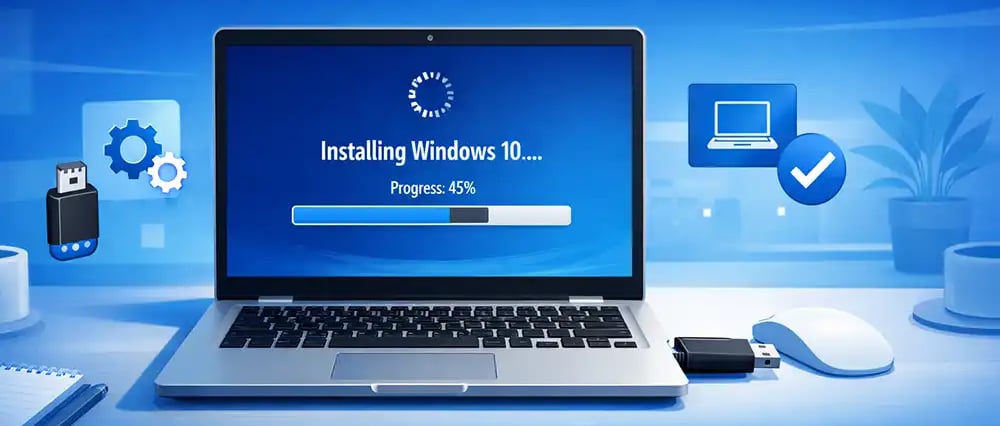

Installing Windows 10 on your PC might sound technical, but with the right guidance, it’s actually simple and straightforward. Whether you're upgrading, fixing errors, or setting up a new system, this guide will walk you through everything you need to know — step by step.
🔍 Why Install Windows 10?
Before diving in, here are a few reasons why people reinstall or install Windows 10:
Fix slow or crashing systems
Remove viruses or malware
Upgrade from an older OS
Start fresh with a clean system
Improve performance and stability
⚙️ System Requirements for Windows 10
Make sure your PC meets these minimum requirements:
Processor: 1 GHz or faster
RAM: 2 GB (64-bit)
Storage: 20 GB free space
Graphics: DirectX 9 or later
Display: 800 × 600 resolution
💡 Tip: For smooth performance, aim for 4GB+ RAM and SSD storage.
🧰 What You Need Before Installation
A USB drive (8GB or more)
A working PC with internet
Windows 10 ISO file or Media Creation Tool
Backup of your important files
⬇️ Step 1: Download Windows 10
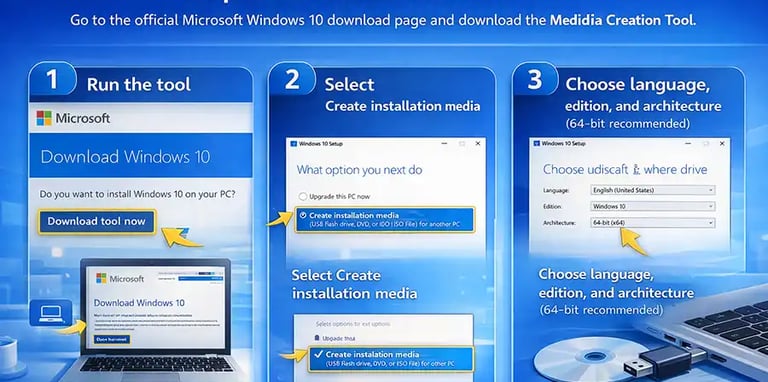
Go to the official Microsoft Windows 10 download page and download the Media Creation Tool.
Run the tool
Select Create installation media
Choose language, edition, and architecture (64-bit recommended)
🔐 About Genuine Softwares
We provide 100% genuine and verified software licenses at affordable prices. Instant delivery, secure payments, and reliable customer support — helping you stay protected and productive.
🛒 Popular Products
Explore some of our most popular genuine software licenses trusted by thousands of users.
🔎 Search Software
📩 Subscribe
📚 Blog Categories
Browse our helpful guides and tutorials to learn more about installing, activating, and using genuine software effectively.
Helpful tutorials for installing, activating, optimizing, and managing Microsoft Windows.
Helpful tutorials for installing and using Microsoft Office applications.
Learn how to choose the right software license for home or business.
Tips to keep your computer safe from malware, viruses, and cyber threats.
Compare different software versions to find the best option for your needs.
Quick solutions for software errors, installation issues, activation problems, performance fixes.
⭐ Why Choose Genuine Softwares?
We focus on delivering trusted, affordable, and genuine software solutions for individuals and businesses worldwide.
✔ 100% Genuine Software Licenses
✔ Instant Digital Delivery
✔ Secure Payment Methods
✔ Affordable Prices
✔ Activation Support Available
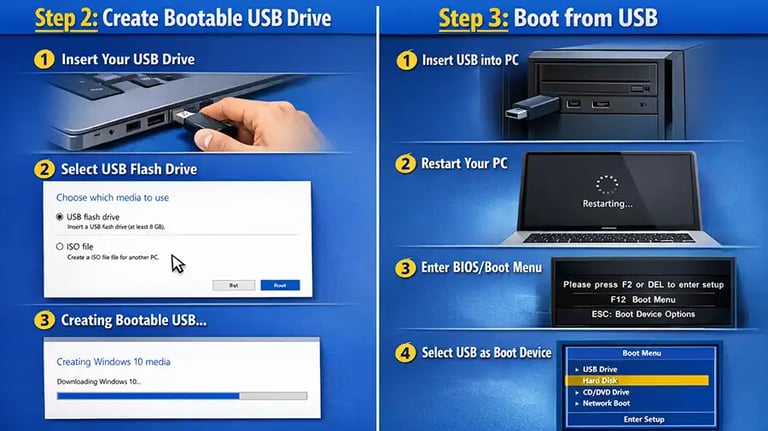
🔌 Step 2: Create Bootable USB Drive
Using the Media Creation Tool:
Insert your USB drive
Select USB Flash Drive
Let the tool download and prepare files
💡 Alternative: Use tools like Rufus for advanced options.
⚡ Step 3: Boot from USB
Insert the USB into your PC
Restart the PC
Enter BIOS/Boot Menu (usually press F2, F12, DEL, or ESC)
Select the USB drive as the boot device
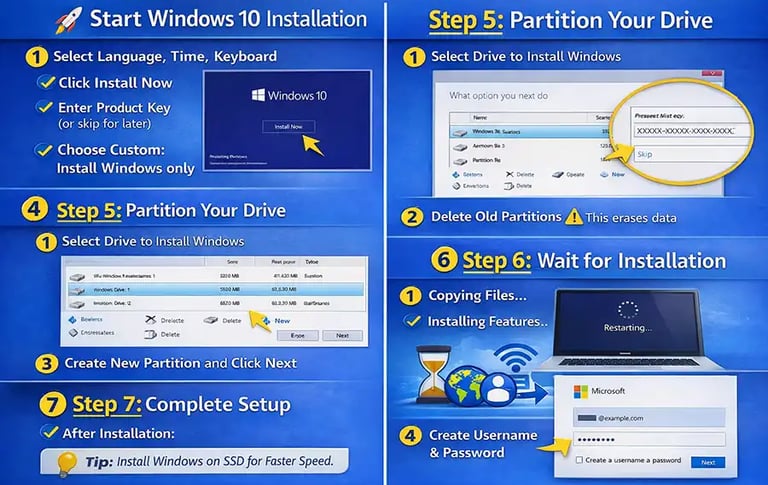
🖥️ Step 4: Start Windows 10 Installation
Once booted:
Select Language, Time, Keyboard
Click Install Now
Enter your product key (or skip for later)
Choose Custom: Install Windows only
💽 Step 5: Partition Your Drive
Select the drive where you want to install Windows
Delete old partitions (⚠️ this erases data)
Create a new partition and click Next
💡 Tip: Install Windows on SSD for faster speed.
⏳ Step 6: Wait for Installation
The system will:
Copy files
Install features
Restart multiple times
This process usually takes 10–30 minutes depending on your PC.
👤 Step 7: Complete Setup
After installation:
Set your region and keyboard
Connect to Wi-Fi
Sign in with a Microsoft account (optional)
Create a username and password
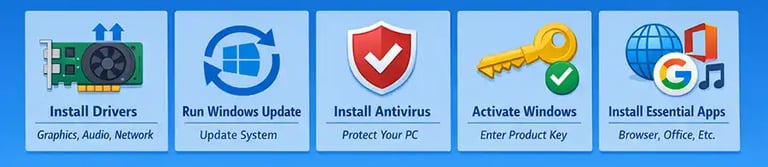
After Installation (Important Tips)
Install drivers (graphics, audio, network)
Run Windows Update
Install antivirus software
Activate Windows
Install essential apps (browser, Office, etc.)
Common Problems & Fixes
❌ PC not booting from USB?
→ Check BIOS boot order
❌ Missing drivers?
→ Download from manufacturer website
❌ Activation issues?
→ Use genuine product key
Pro Tips for Best Performance
Use SSD instead of HDD
Disable startup programs
Keep system updated
Avoid pirated software
How to Install Windows 10 on Any PC

Genuine
Authentic Microsoft Software Solutions at Unbeatable Prices, Instant Delivery, Trusted Worldwide.
Support & Contact
Newsletter
customercare@genuinesoftwarekeys.com
+960 796 4737
© 2026. Genuine Software Keys. All rights reserved.
100% Genuine Software


Genuine License Guaranteed






Instant Delivery
Secure Payments
24/7 Customer Support
via Email
SSL Encrypted
We’re Here Anytime


Software Keys
Subscribe Now & Unlock Exclusive Deals, Special Discounts, and the Latest Offers.
Available 24/7 – Get a Response Within 2 Minutes, Anytime You Need Us.
Popular Products


We Accept




✔ No Spam
✔ Special Offers
✔ Early Access Details
SSL Secured


Your data is safe with us
Delivery Policy | Terms and Conditions
Microsoft Office 365 Professional Plus