
How to Fix Windows 10 Activation Problems (Easy Step-by-Step Guide)
Struggling with Windows 10 activation errors? Learn how to fix activation problems quickly with this complete troubleshooting guide.
TROUBLESHOOTING & FIXES
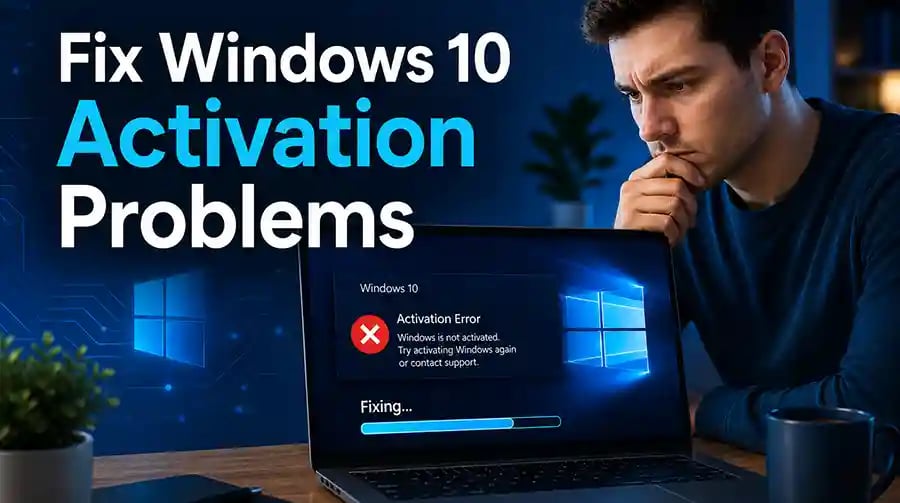
How to Fix Windows 10 Activation Problems
Complete Troubleshooting Guide to Resolve Activation Errors Quickly and Legally
Dealing with activation issues in Windows 10 can be frustrating—especially when everything seems to be working fine, yet your system suddenly shows messages like “Windows is not activated” or “Activate Windows now.”
The good news is that most activation problems are common and fixable. Whether it’s a license mismatch, hardware change, or connection issue, this guide will walk you through practical, proven solutions step by step—without technical confusion.
Why Windows 10 Activation Problems Happen
Before fixing the issue, it helps to understand why activation errors occur in the first place.
When you activate Windows, your license is verified through Microsoft servers. This license is often tied either to your hardware or your Microsoft account.
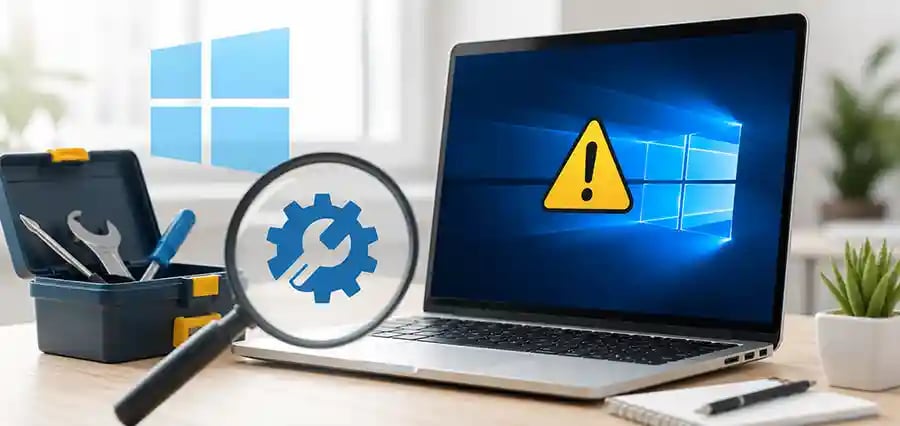
Problems usually arise when something changes—like upgrading hardware, reinstalling Windows, or entering an incorrect product key. Sometimes, even system updates or server delays can temporarily disrupt activation.
Understanding the cause is important because the solution depends on it.
Check Your Activation Status First
The first step is to confirm what exactly is wrong.
Go to your system settings and navigate to Activation. Here, Windows will show whether your system is activated, along with any error codes.
These error messages may look confusing, but they often point directly to the problem—such as an invalid key, no internet connection, or license mismatch.
Common Activation Errors and What They Mean
Some activation issues appear more frequently than others.
For example, if you see an error about an invalid product key, it usually means the key was entered incorrectly or doesn’t match your Windows edition.
If the system says your license is already in use on another device, it could mean your key has been used elsewhere or you’ve exceeded activation limits.
Errors after hardware changes—like replacing a motherboard—happen because Windows no longer recognizes your device as the original one.
While these issues sound serious, most of them can be resolved with the right steps.
🔐 About Genuine Softwares
We provide 100% genuine and verified software licenses at affordable prices. Instant delivery, secure payments, and reliable customer support — helping you stay protected and productive.
🛒 Popular Products
Explore some of our most popular genuine software licenses trusted by thousands of users.
🔎 Search Software
📩 Subscribe
📚 Blog Categories
Browse our helpful guides and tutorials to learn more about installing, activating, and using genuine software effectively.
Helpful tutorials for installing, activating, optimizing, and managing Microsoft Windows.
Helpful tutorials for installing and using Microsoft Office applications.
Learn how to choose the right software license for home or business.
Tips to keep your computer safe from malware, viruses, and cyber threats.
Compare different software versions to find the best option for your needs.
Quick solutions for software errors, installation issues, activation problems, performance fixes.
⭐ Why Choose Genuine Softwares?
We focus on delivering trusted, affordable, and genuine software solutions for individuals and businesses worldwide.
✔ 100% Genuine Software Licenses
✔ Instant Digital Delivery
✔ Secure Payment Methods
✔ Affordable Prices
✔ Activation Support Available
Run the Windows Activation Troubleshooter
One of the easiest ways to fix activation issues is to use the built-in troubleshooter.
Windows 10 includes an automated tool that scans for common problems and attempts to fix them. It’s especially helpful if your license is linked to your Microsoft account.
When you run the troubleshooter, it checks your system, verifies your account, and may reactivate Windows automatically—saving you time and effort.
Sign In with the Correct Microsoft Account
Many activation problems happen simply because the wrong account is being used.
If your digital license is linked to your Microsoft account, you must sign in with that same account. Otherwise, Windows won’t recognize your license.
Switching to the correct account often resolves the issue instantly, especially after reinstalling Windows or switching devices.
Re-enter Your Product Key Carefully
If you’re using a product key instead of a digital license, double-check it.
Even a small typing mistake can prevent activation. Make sure you’re entering the correct key and that it matches your version of Windows (Home, Pro, etc.).
If you purchased your key from a third-party seller, ensure it’s genuine and hasn’t already been used on multiple devices.
Check Your Internet Connection
Activation requires communication with Microsoft’s servers.
If your internet connection is unstable or blocked by firewall settings, Windows may fail to activate. Simply reconnecting to a stable network and trying again can fix the problem.
In some cases, temporary server issues can also delay activation—but these usually resolve on their own.
Fix Activation After Hardware Changes
Upgrading your PC can sometimes break activation.
If you’ve recently changed major components like the motherboard, Windows may treat your system as a new device. In this case, you can use the activation troubleshooter to re-link your license.
If your license is tied to your Microsoft account, you’ll often have the option to reactivate Windows by confirming your device.
Remove Old or Conflicting Installations
If you’ve previously installed different versions of Windows or reused product keys, conflicts can occur.
Cleaning up old installations and ensuring only one valid license is in use can help resolve these issues. Sometimes, a fresh installation followed by proper activation is the most effective solution.
When to Contact Microsoft Support
If none of the above methods work, it may be time to contact Microsoft support.
They can verify your license, help resolve account issues, and guide you through manual activation if needed. This is especially useful for complex cases involving hardware changes or business licenses.
Tips to Avoid Activation Problems in the Future
Preventing activation issues is much easier than fixing them later.
Keep your license linked to your Microsoft account so it’s easier to recover after reinstallations or upgrades.
Avoid using unofficial or suspicious product keys, as these often lead to activation failures.
Whenever you upgrade hardware, ensure your license type supports transferability.
Final Thoughts: Solve Activation Issues the Smart Way
Windows 10 activation problems can seem intimidating at first, but they’re usually easy to fix once you understand the cause.
The key is to approach the issue step by step—check your license, verify your account, and use the built-in tools available in Windows.
By following this guide, you can resolve most activation errors quickly and get back to using your system without interruptions.
Genuine
Authentic Microsoft Software Solutions at Unbeatable Prices, Instant Delivery, Trusted Worldwide.
Support & Contact
Newsletter
customercare@genuinesoftwarekeys.com
+960 796 4737
© 2026. Genuine Software Keys. All rights reserved.
100% Genuine Software


Genuine License Guaranteed






Instant Delivery
Secure Payments
24/7 Customer Support
via Email
SSL Encrypted
We’re Here Anytime


Software Keys
Subscribe Now & Unlock Exclusive Deals, Special Discounts, and the Latest Offers.
Available 24/7 – Get a Response Within 2 Minutes, Anytime You Need Us.
Popular Products


We Accept




✔ No Spam
✔ Special Offers
✔ Early Access Details
SSL Secured


Your data is safe with us
Delivery Policy | Terms and Conditions
Microsoft Office 365 Professional Plus