
How to Customize Your Windows Desktop Like a Pro (Windows 10 & 11 Guide)
Learn how to customize your Windows desktop like a pro. Discover themes, widgets, taskbar tweaks, and advanced tips to improve productivity and design in Windows 10 and 11.
WINDOWS GUIDES
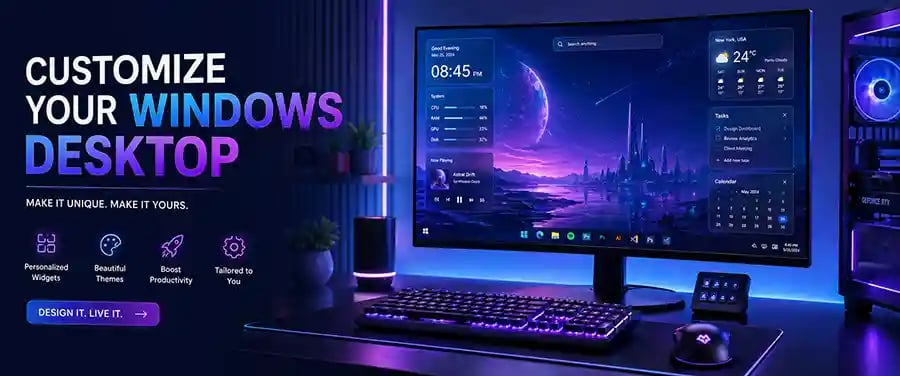
Advanced Customization Tips to Make Your Windows Experience Stand Out
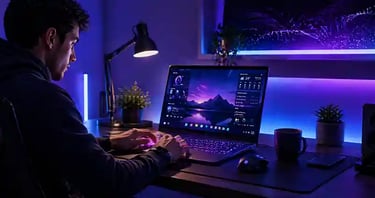
Customizing your desktop isn’t just about making your computer look good—it’s about creating an environment that boosts productivity, reflects your personality, and makes everyday tasks easier. Whether you’re using Windows 10 or Windows 11, the possibilities for personalization go far beyond simply changing a wallpaper. With the right approach, your desktop can become a powerful, visually appealing workspace that feels uniquely yours.
Transforming Your Desktop into a Personalized Productivity Space
The first step in customizing your Windows desktop like a pro is understanding that design and functionality should go hand in hand. A cluttered desktop filled with random icons can slow you down mentally, while a clean and organized layout can improve focus and efficiency.
Start with your wallpaper and theme. Instead of using generic backgrounds, choose something that inspires you or aligns with your work style—minimalist designs for focus, nature scenes for calmness, or dark themes for reduced eye strain. Both Windows 10 and Windows 11 offer built-in themes, but you can take it further by exploring dynamic wallpapers and high-resolution backgrounds that bring your screen to life.
Next, organize your desktop icons thoughtfully. Group related apps together or reduce clutter by pinning frequently used applications to the taskbar or Start menu. This small change can drastically improve your workflow, making it easier to find what you need instantly.
The taskbar itself is another powerful customization area. You can adjust its position, size, and behavior to match your preferences. In Windows 11, the centered taskbar offers a modern feel, while Windows 10 allows more flexibility in alignment. Pinning essential apps and removing unnecessary ones ensures your workspace stays clean and efficient.
Enhancing Visual Appeal with Themes, Colors, and Transparency
Once the basics are in place, you can take your customization further by adjusting colors, transparency effects, and system-wide themes. Windows allows you to switch between light and dark modes, but going beyond that—custom accent colors, transparency effects, and personalized lock screens—can make your system feel truly unique.
Using dark mode not only looks sleek but can also reduce eye strain during long working hours. Meanwhile, transparency effects add depth and a modern touch to your interface. Carefully choosing accent colors that match your wallpaper or branding can create a cohesive and professional look.
If you want to elevate your desktop even more, consider using third-party tools like Rainmeter. This powerful customization tool allows you to add widgets such as system stats, clocks, weather updates, and more directly to your desktop. With Rainmeter, your desktop can become both beautiful and highly functional.
Mastering Widgets and Desktop Gadgets
Widgets are making a strong comeback, especially in Windows 11. They provide quick access to information like weather, news, calendar events, and system performance without opening multiple apps.
However, the key to using widgets effectively is balance. Overloading your desktop with too many elements can make it look messy and reduce performance. Instead, choose a few essential widgets that genuinely add value to your daily routine.
For advanced users, combining widgets with tools like Rainmeter can create a futuristic, highly customized interface that looks like something straight out of a tech showcase.
🔐 About Genuine Softwares
We provide 100% genuine and verified software licenses at affordable prices. Instant delivery, secure payments, and reliable customer support — helping you stay protected and productive.
🛒 Popular Products
Explore some of our most popular genuine software licenses trusted by thousands of users.
🔎 Search Software
📩 Subscribe
📚 Blog Categories
Browse our helpful guides and tutorials to learn more about installing, activating, and using genuine software effectively.
Helpful tutorials for installing, activating, optimizing, and managing Microsoft Windows.
Helpful tutorials for installing and using Microsoft Office applications.
Learn how to choose the right software license for home or business.
Tips to keep your computer safe from malware, viruses, and cyber threats.
Compare different software versions to find the best option for your needs.
Quick solutions for software errors, installation issues, activation problems, performance fixes.
⭐ Why Choose Genuine Softwares?
We focus on delivering trusted, affordable, and genuine software solutions for individuals and businesses worldwide.
✔ 100% Genuine Software Licenses
✔ Instant Digital Delivery
✔ Secure Payment Methods
✔ Affordable Prices
✔ Activation Support Available
Boosting Productivity with Smart Layouts and Shortcuts
Customization isn’t only about aesthetics—it’s also about working smarter. Features like Snap Layouts in Windows 11 allow you to organize multiple windows efficiently, making multitasking seamless.
Keyboard shortcuts are another underrated aspect of customization. Learning a few essential shortcuts can save hours over time and make your workflow smoother. You can also create custom shortcuts for frequently used applications, giving you instant access with just a few keystrokes.
Virtual desktops are another powerful feature. They allow you to separate workspaces—for example, one for work, one for entertainment, and one for personal tasks. This keeps your environment organized and distraction-free.
Personalizing Sounds, Fonts, and Hidden Details
True customization goes beyond visuals. Windows allows you to personalize system sounds, fonts, and even cursor styles. These small details might seem minor, but they contribute to a more immersive and enjoyable user experience.
Changing system sounds can make interactions feel fresh, while customizing fonts can improve readability and style. Even subtle adjustments, like cursor themes or notification styles, can make your system feel completely different.
Keeping Performance in Mind
While customization is exciting, it’s important not to overdo it. Too many widgets, animations, or heavy themes can slow down your system, especially on older hardware.
A professional approach to customization always balances design with performance. Choose lightweight tools, avoid unnecessary background processes, and regularly clean up unused elements to keep your system running smoothly.
Creating a Setup That Reflects You
At its core, customizing your Windows desktop is about creating a space that works for you. Whether you prefer a clean and minimal look or a highly dynamic and feature-rich interface, the goal is to make your computer feel intuitive and enjoyable to use.
With the right combination of themes, tools, and smart organization, you can transform your Windows desktop into a professional-grade workspace that enhances both productivity and creativity.
Genuine
Authentic Microsoft Software Solutions at Unbeatable Prices, Instant Delivery, Trusted Worldwide.
Support & Contact
Newsletter
customercare@genuinesoftwarekeys.com
+960 796 4737
© 2026. Genuine Software Keys. All rights reserved.
100% Genuine Software


Genuine License Guaranteed






Instant Delivery
Secure Payments
24/7 Customer Support
via Email
SSL Encrypted
We’re Here Anytime


Software Keys
Subscribe Now & Unlock Exclusive Deals, Special Discounts, and the Latest Offers.
Available 24/7 – Get a Response Within 2 Minutes, Anytime You Need Us.
Popular Products


We Accept




✔ No Spam
✔ Special Offers
✔ Early Access Details
SSL Secured


Your data is safe with us
Delivery Policy | Terms and Conditions
Microsoft Office 365 Professional Plus