

How to Create Professional Documents Using Microsoft Word | Expert Guide for Beginners & Professionals
Learn how to create professional documents using Microsoft Word with expert formatting, design, layout, and productivity tips. Create resumes, reports, proposals, and business documents that look polished and professional.
MICROSOFT OFFICE TUTORIALS
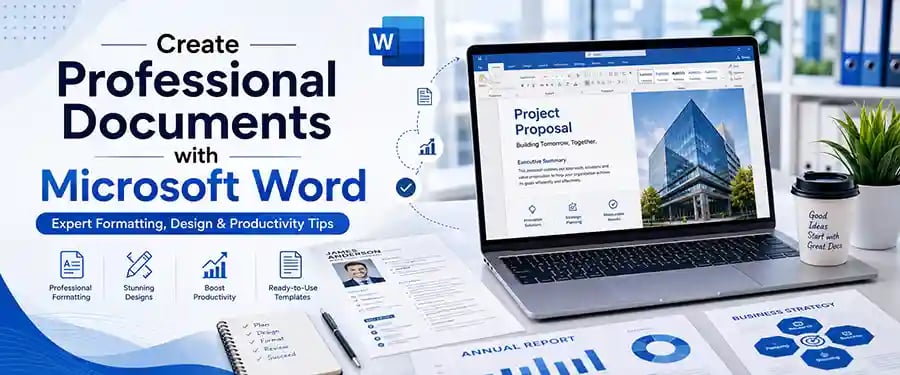

How to Create Professional Documents Using Microsoft Word
Why Professional Document Design Matters More Than Ever
In today's digital world, the quality of your documents can significantly influence how others perceive you or your business. Whether you're submitting a job application, preparing a business proposal, creating an academic report, writing a project plan, or sending professional correspondence, the appearance of your document matters almost as much as its content.
Microsoft Word remains one of the most powerful and widely used document creation tools in the world. While many users know how to type text and save files, relatively few understand how to use Word's advanced features to create truly professional-looking documents.
A well-designed document communicates professionalism, attention to detail, and credibility. It helps readers understand information more easily while creating a positive first impression. Fortunately, you don't need to be a graphic designer to create impressive documents. With the right techniques and tools available in Microsoft Word, anyone can produce polished, professional results.
Understanding the Foundations of Professional Document Design
Before diving into advanced features, it's important to understand what separates a professional document from an ordinary one.
Professional documents are easy to read, visually organized, and consistent throughout. They use proper spacing, clear headings, appropriate fonts, balanced margins, and a logical structure. Every element serves a purpose and contributes to a clean, organized appearance.
Many people make the mistake of adding excessive colors, fonts, and decorative elements. In reality, professional design is often based on simplicity and consistency. The goal is not to impress readers with visual effects but to make information accessible and visually appealing.
Choosing the Right Document Template
One of the easiest ways to create professional documents is by starting with a well-designed template.
Microsoft Word offers a wide range of built-in templates for resumes, business reports, invoices, proposals, newsletters, meeting agendas, brochures, and more. These templates provide professionally designed layouts that save time and ensure consistency.
Using a template doesn't mean your document will look generic. Templates can be customized with your own branding, colors, logos, and content while maintaining a polished structure.
For businesses, creating a custom company template ensures that all employees use consistent formatting across documents, strengthening brand identity and professionalism.
Selecting Professional Fonts
Typography plays a major role in document design.
Professional documents typically use clean, readable fonts such as:
Calibri
Arial
Aptos
Times New Roman
Cambria
Garamond
Avoid using decorative fonts for business or academic documents. While they may appear creative, they often reduce readability and can make documents appear unprofessional.
A common best practice is to use one font for headings and another complementary font for body text. Maintaining consistency throughout the document creates a cleaner and more polished appearance.
Font size is equally important. Body text is generally easiest to read between 10 and 12 points, while headings should be larger to create clear visual hierarchy.
Using Styles for Consistency
One of Microsoft's most powerful yet underused features is Styles. Styles allow you to apply consistent formatting to headings, subheadings, quotes, and body text throughout a document. Instead of manually formatting each section, styles automatically maintain uniform formatting.
Using styles provides several benefits: Consistency across the entire document, faster editing, easier navigation, and automatic table of contents generation.
Large reports, manuals, and academic papers become significantly easier to manage when styles are used correctly from the beginning.
🔐 About Genuine Softwares
We provide 100% genuine and verified software licenses at affordable prices. Instant delivery, secure payments, and reliable customer support — helping you stay protected and productive.
🛒 Popular Products
Explore some of our most popular genuine software licenses trusted by thousands of users.
🔎 Search Software
📩 Subscribe
📚 Blog Categories
Browse our helpful guides and tutorials to learn more about installing, activating, and using genuine software effectively.
Helpful tutorials for installing, activating, optimizing, and managing Microsoft Windows.
Helpful tutorials for installing and using Microsoft Office applications.
Learn how to choose the right software license for home or business.
Tips to keep your computer safe from malware, viruses, and cyber threats.
Compare different software versions to find the best option for your needs.
Quick solutions for software errors, installation issues, activation problems, performance fixes.
⭐ Why Choose Genuine Softwares?
We focus on delivering trusted, affordable, and genuine software solutions for individuals and businesses worldwide.
✔ 100% Genuine Software Licenses
✔ Instant Digital Delivery
✔ Secure Payment Methods
✔ Affordable Prices
✔ Activation Support Available
Creating Effective Headings and Sections
Readers rarely consume long documents word for word. Instead, they scan content looking for important information. Clear headings help guide readers through your document while improving readability. Every major topic should have a distinct heading, and related subtopics should use subheadings.
Think of headings as signposts that help readers navigate your content quickly and efficiently. A properly structured document feels organized and professional, while a document without clear sections often appears overwhelming.
Mastering Page Layout and Margins
Professional documents require proper spacing and alignment. Microsoft Word's layout tools allow users to adjust margins, page orientation, columns, section breaks, and page size.
Standard margins work well for most documents, but reports, presentations, and printed materials may require adjustments. White space should never be underestimated. Adequate spacing between paragraphs, headings, and sections improves readability and gives documents a cleaner appearance.
Crowded pages often feel difficult to read and can diminish the professional quality of your work.
Adding Professional Headers and Footers
Headers and footers provide important information while enhancing document organization.
Businesses often include:
Company name
Document title
Page numbers
Copyright information
Confidentiality notices
For academic or business reports, page numbering is essential. Word makes it easy to insert automatic page numbers that update throughout the document.
Consistent headers and footers contribute to a polished, professional presentation.
Enhancing Documents with Visual Elements
Professional documents are not limited to text. Charts, tables, icons, SmartArt graphics, and images can make information easier to understand and more engaging.
For example, instead of presenting large blocks of statistics, a well-designed chart can communicate the same information much more effectively. When using visuals, focus on relevance and quality. Poor-quality images or unnecessary graphics can distract readers and reduce professionalism.
Every visual element should support the content rather than simply decorate the page.
Creating Tables That Look Professional
Tables are frequently used in reports, proposals, and business documents.
A professional table should be clean, organized, and easy to read. Use consistent formatting, appropriate borders, and subtle shading when necessary.
Avoid excessive colors or complex formatting that can make data difficult to understand.
Word offers numerous table styles that can instantly improve the appearance of your information while maintaining readability.
Leveraging Microsoft Word's Review Tools
Professional documents should always be reviewed before sharing.
Microsoft Word includes powerful tools for proofreading and collaboration, including:
Spelling and grammar checking
Track Changes
Comments
Editor suggestions
Read Aloud functionality
These features help identify errors and improve overall document quality.
For collaborative projects, Track Changes allows multiple people to review and edit documents while preserving transparency throughout the revision process.
Building a Professional Table of Contents
For longer documents such as reports, manuals, proposals, or research papers, a table of contents adds professionalism and improves navigation.
When heading styles are used correctly, Word can automatically generate a table of contents that updates whenever content changes.
This feature saves time while making lengthy documents easier for readers to navigate.
Saving and Sharing Documents Properly
Creating a professional document doesn't end with formatting.
Choosing the right file format is equally important.
For editing and collaboration, Word documents (.docx) remain ideal. For final distribution, PDF files are often preferred because they preserve formatting across devices and operating systems.
Before sharing any document, review it carefully on multiple devices if possible to ensure consistency.
Advanced Tips for a More Professional Appearance
Small details often make the biggest difference.
Use page breaks instead of repeatedly pressing Enter. Align content using tabs and tables rather than spaces. Maintain consistent spacing throughout the document. Use high-resolution logos and images. Keep color usage minimal and purposeful.
Professional-looking documents are rarely created through complicated design techniques. Instead, they result from careful attention to detail and consistent formatting practices.
Common Mistakes to Avoid
Many users unintentionally reduce document quality through avoidable mistakes.
Using too many fonts, inconsistent heading styles, excessive colors, poor alignment, crowded pages, low-quality images, and insufficient proofreading can make even excellent content appear unprofessional.
Taking a few extra minutes to review formatting can dramatically improve the final result.
Final Thoughts
Microsoft Word is far more powerful than many users realize. Beyond simple word processing, it offers a complete set of tools for creating polished, professional documents suitable for business, education, marketing, and personal use.
By mastering templates, styles, typography, page layouts, visual elements, and review tools, you can create documents that stand out for all the right reasons. Whether you're preparing a resume, proposal, report, or company presentation, investing time in professional document design helps build credibility, improve communication, and leave a lasting impression on your audience.
The best part is that these skills can be learned quickly and applied to virtually every document you create, helping you work smarter while presenting your ideas with confidence and professionalism.


Genuine
Authentic Microsoft Software Solutions at Unbeatable Prices, Instant Delivery, Trusted Worldwide.
Support & Contact
Newsletter
customercare@genuinesoftwarekeys.com
+960 796 4737
© 2026. Genuine Software Keys. All rights reserved.
100% Genuine Software


Genuine License Guaranteed






Instant Delivery
Secure Payments
24/7 Customer Support
via Email
SSL Encrypted
We’re Here Anytime


Software Keys
Subscribe Now & Unlock Exclusive Deals, Special Discounts, and the Latest Offers.
Available 24/7 – Get a Response Within 2 Minutes, Anytime You Need Us.
Popular Products


We Accept




✔ No Spam
✔ Special Offers
✔ Early Access Details
SSL Secured


Your data is safe with us
Delivery Policy | Terms and Conditions
Microsoft Office 365 Professional Plus