

Common Windows Problems and How to Fix Them | Complete Guide 2026
Learn how to fix common Windows problems like slow performance, update errors, internet issues, and more. Easy solutions for Windows 10 and Windows 11 users.
TROUBLESHOOTING & FIXES
Common Windows Problems and How to Fix Them
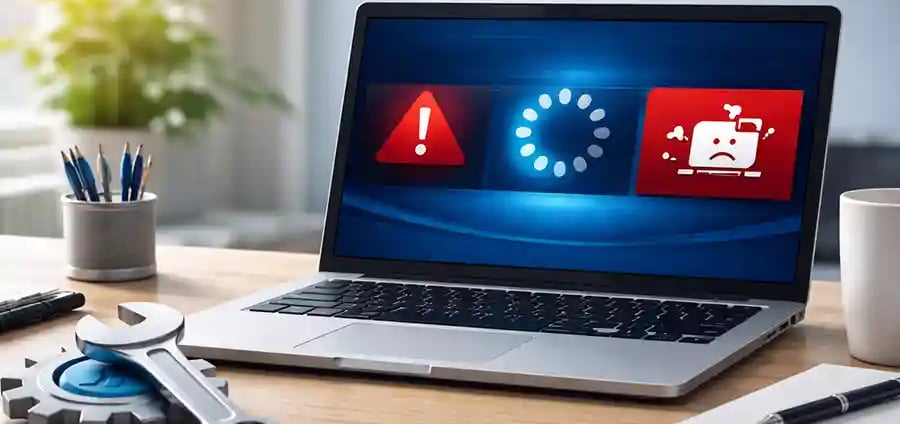
Whether you’re using your computer for work, business, or personal tasks, few things are more frustrating than a slow or malfunctioning system. From unexpected crashes to annoying update errors, Windows issues can disrupt your productivity and cause unnecessary stress.
The good news is that most of these problems are common and fixable—you don’t always need a technician. In this guide, we’ll explore the most frequent issues users face in Windows 10 and Windows 11, along with practical solutions you can apply right away.
Why Windows Problems Happen
Windows operating systems are powerful but complex. Over time, issues can arise due to outdated software, corrupted files, incompatible drivers, or even simple user errors. Installing too many programs, ignoring updates, or downloading files from unsafe sources can also increase the chances of problems.
Understanding the root cause is the first step toward fixing and preventing these issues.
Slow Computer Performance
One of the most common complaints among users is a slow computer. Your system may take longer to start, applications may lag, or everything may feel unresponsive.
This usually happens because too many programs are running in the background, your storage is nearly full, or your system hasn’t been optimized in a long time. Over time, temporary files and unused applications can build up and affect performance.
To fix this, start by disabling unnecessary startup programs using Task Manager. Cleaning up disk space and uninstalling unused software can also make a significant difference. If your system still feels slow, upgrading to an SSD or increasing RAM can dramatically improve performance.
Windows Update Errors
Updates are essential for keeping your system secure and running smoothly, but sometimes they fail to install properly. You might see error messages, stuck updates, or repeated update failures.
These issues often occur due to corrupted update files or unstable internet connections. Restarting your system and running the built-in Windows Update troubleshooter can resolve many of these problems.
Clearing the update cache or ensuring your system has enough storage space can also help. While updates can be annoying, they are critical for protecting your system from security vulnerabilities.
🔐 About Genuine Softwares
We provide 100% genuine and verified software licenses at affordable prices. Instant delivery, secure payments, and reliable customer support — helping you stay protected and productive.
🛒 Popular Products
Explore some of our most popular genuine software licenses trusted by thousands of users.
🔎 Search Software
📩 Subscribe
📚 Blog Categories
Browse our helpful guides and tutorials to learn more about installing, activating, and using genuine software effectively.
Helpful tutorials for installing, activating, optimizing, and managing Microsoft Windows.
Helpful tutorials for installing and using Microsoft Office applications.
Learn how to choose the right software license for home or business.
Tips to keep your computer safe from malware, viruses, and cyber threats.
Compare different software versions to find the best option for your needs.
Quick solutions for software errors, installation issues, activation problems, performance fixes.
⭐ Why Choose Genuine Softwares?
We focus on delivering trusted, affordable, and genuine software solutions for individuals and businesses worldwide.
✔ 100% Genuine Software Licenses
✔ Instant Digital Delivery
✔ Secure Payment Methods
✔ Affordable Prices
✔ Activation Support Available
Blue Screen of Death (BSOD)
The Blue Screen of Death is one of the most alarming issues users encounter. Your system suddenly crashes and displays a blue screen with an error code.
Although it looks serious, BSOD errors are usually caused by hardware issues, outdated drivers, or corrupted system files. Updating your drivers, especially graphics and chipset drivers, can often resolve the issue.
Running system scans to check for corrupted files and ensuring your hardware components are functioning properly are also important steps. In many cases, the problem can be fixed without replacing your device.
Internet Connectivity Issues
Another common frustration is when your internet stops working or becomes unstable. This can interrupt work, online meetings, and browsing.
Connectivity problems can be caused by outdated network drivers, incorrect settings, or router issues. Restarting your router and your computer is often the simplest and most effective solution.
If the problem persists, updating your network drivers or resetting your network settings can help restore a stable connection.
File Explorer Not Responding
File Explorer is essential for accessing files and folders, so when it stops responding, it can be very inconvenient.
This issue often happens due to overloaded system resources or corrupted files. Restarting File Explorer from Task Manager can quickly fix temporary glitches.
If the issue continues, clearing file history or running system maintenance tools can help restore normal functionality.
Activation and License Issues
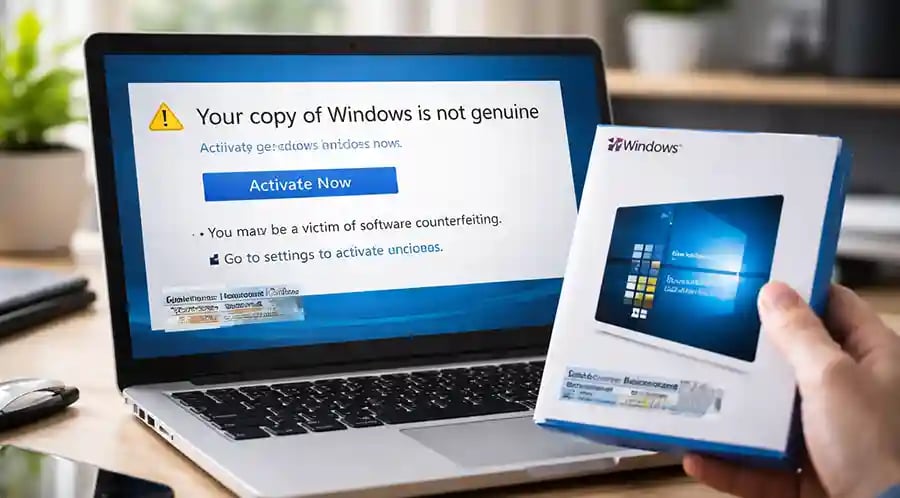
Some users face problems with Windows activation, especially after updates or hardware changes. You may see messages saying your copy of Windows is not genuine.
This usually happens when the system cannot verify your license. Ensuring you are using a genuine copy of Windows is important. Signing in with your Microsoft account and running the activation troubleshooter can often resolve the issue.
Using licensed software not only avoids these problems but also ensures you receive updates and support.
Virus and Malware Infections
Malware can slow down your system, display unwanted ads, or even steal sensitive information. This is a serious issue that should not be ignored.
Installing reliable antivirus software and performing regular scans can help detect and remove threats. Avoid downloading files from unknown sources and be cautious with email attachments.
Keeping your system updated also helps protect against new threats.
Sound Not Working
Audio issues are another common problem, especially after updates. You may find that your speakers or headphones are not producing any sound.
This is often due to driver issues or incorrect audio settings. Checking your volume settings and ensuring the correct playback device is selected is a good starting point.
Updating or reinstalling audio drivers can usually fix the problem.
Tips to Prevent Future Problems
While fixing issues is important, preventing them is even better. Regular system maintenance can keep your computer running smoothly.
Make it a habit to update your operating system and software regularly. Avoid installing unnecessary programs and always use trusted sources for downloads. Backing up your important data ensures you don’t lose valuable information in case of unexpected problems.
Simple practices like these can significantly reduce the chances of encountering major issues.
Final Thoughts
Windows problems can be frustrating, but they are often easier to fix than they seem. By understanding common issues and applying the right solutions, you can keep your system running smoothly without needing professional help every time.
Whether you are using Windows 10 or Windows 11, staying proactive with maintenance and updates is the key to a better computing experience.
With the right approach, you can turn common problems into simple fixes—and enjoy a faster, more reliable PC every day.


Genuine
Authentic Microsoft Software Solutions at Unbeatable Prices, Instant Delivery, Trusted Worldwide.
Support & Contact
Newsletter
customercare@genuinesoftwarekeys.com
+960 796 4737
© 2026. Genuine Software Keys. All rights reserved.
100% Genuine Software


Genuine License Guaranteed






Instant Delivery
Secure Payments
24/7 Customer Support
via Email
SSL Encrypted
We’re Here Anytime


Software Keys
Subscribe Now & Unlock Exclusive Deals, Special Discounts, and the Latest Offers.
Available 24/7 – Get a Response Within 2 Minutes, Anytime You Need Us.
Popular Products


We Accept




✔ No Spam
✔ Special Offers
✔ Early Access Details
SSL Secured


Your data is safe with us
Delivery Policy | Terms and Conditions
Microsoft Office 365 Professional Plus