

Beginner’s Guide to Installing Microsoft Office 365 on Windows (Step-by-Step)
Learn how to install Microsoft Office 365 on Windows easily with this beginner-friendly guide. Step-by-step instructions, tips, and troubleshooting included.
MICROSOFT OFFICE TUTORIALS
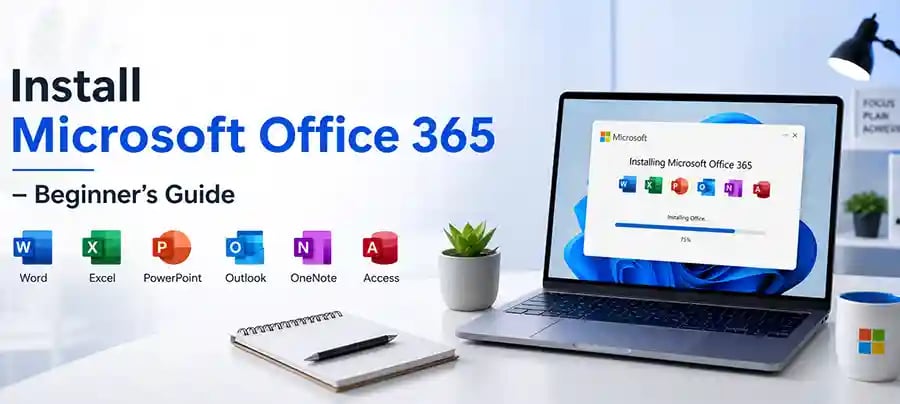
Beginner’s Guide to Installing Microsoft Office 365 on Windows
Step-by-Step Setup, Tips, and Troubleshooting for a Smooth Installation
Installing Microsoft Office 365 (now often branded as Microsoft 365) on your Windows PC might seem complicated at first—but in reality, it’s a straightforward process when you understand each step clearly.
Whether you’re setting it up for work, school, or personal use, this guide walks you through everything in a simple, practical way. By the end, you’ll not only have Office installed but also fully ready to use tools like Microsoft Word, Microsoft Excel, and Microsoft PowerPoint without confusion.
Understanding Microsoft Office 365 Before You Install
Before jumping into installation, it helps to know what you’re actually installing.
Microsoft 365 is not just a one-time software purchase—it’s a subscription-based service from Microsoft. This means you get regular updates, cloud storage through OneDrive, and access across multiple devices.
Unlike older versions of Office, you’re always using the latest version, with new features added over time. This is especially useful for students and professionals who rely on updated tools and collaboration features.
What You Need Before Installation
To avoid frustration halfway through the process, make sure you’re prepared.
You’ll need a stable internet connection because the installation files are downloaded online. You also need a Microsoft account—this is essential because your Office license is linked to it.
If you’ve purchased a subscription, ensure it’s already activated. If not, you’ll be prompted to do so during the setup process.
Also, check that your system is running a supported version of Windows such as Windows 10 or Windows 11, as older versions may not support the latest Office apps.
Step-by-Step: How to Install Microsoft Office 365 on Windows
The installation process is designed to be user-friendly, even for beginners.
Start by visiting the official Microsoft website and signing in with your Microsoft account. Once logged in, navigate to your dashboard where your subscription is listed.
From there, you’ll see an option to install Office. Clicking this will download a setup file to your computer. Open the file, and the installer will begin automatically.
At this point, you don’t need to choose complicated settings—the system handles most of the process for you. Office will download and install all necessary applications in the background.
During installation, you can continue using your computer, but performance may slow slightly depending on your internet speed and system specifications.
Once the installation is complete, you’ll receive a notification. You can then open any Office app, such as Word or Excel, and sign in again to activate your subscription.
🔐 About Genuine Softwares
We provide 100% genuine and verified software licenses at affordable prices. Instant delivery, secure payments, and reliable customer support — helping you stay protected and productive.
🛒 Popular Products
Explore some of our most popular genuine software licenses trusted by thousands of users.
🔎 Search Software
📩 Subscribe
📚 Blog Categories
Browse our helpful guides and tutorials to learn more about installing, activating, and using genuine software effectively.
Helpful tutorials for installing, activating, optimizing, and managing Microsoft Windows.
Helpful tutorials for installing and using Microsoft Office applications.
Learn how to choose the right software license for home or business.
Tips to keep your computer safe from malware, viruses, and cyber threats.
Compare different software versions to find the best option for your needs.
Quick solutions for software errors, installation issues, activation problems, performance fixes.
⭐ Why Choose Genuine Softwares?
We focus on delivering trusted, affordable, and genuine software solutions for individuals and businesses worldwide.
✔ 100% Genuine Software Licenses
✔ Instant Digital Delivery
✔ Secure Payment Methods
✔ Affordable Prices
✔ Activation Support Available
First-Time Setup: What Happens After Installation
After installing Office, the first launch experience is important.
When you open an app like Word, you’ll be asked to sign in. This step ensures your license is verified and your settings are synced.
You’ll also notice templates, themes, and cloud integration features. Files can automatically save to OneDrive, which protects your work and allows access from other devices.
This is where Microsoft 365 really stands out—it’s not just software on your PC; it’s a connected ecosystem.
Common Problems and How to Fix Them
Even though the process is simple, beginners sometimes face issues.
One common problem is slow installation. This usually happens due to poor internet speed. Restarting the download or switching to a more stable connection often solves it. Another issue is activation errors. This typically occurs if you’re signed in with the wrong Microsoft account or your subscription hasn’t been activated properly.
Sometimes older versions of Office can interfere with installation. In such cases, uninstalling previous versions before installing Microsoft 365 is the best solution. If the installer doesn’t open, try running it as an administrator or temporarily disabling antivirus software.
Tips to Get the Best Experience from Microsoft 365
Once installed, there are a few simple ways to make the most of your setup.
Keep your apps updated to access new features and security improvements. Microsoft handles most updates automatically, but it’s good to check occasionally.
Use OneDrive to save important files instead of storing everything locally. This protects your data and allows you to access it anywhere.
Explore built-in templates in Word and PowerPoint—they can save time and make your work look more professional instantly.
If you’re working across devices, install Microsoft 365 on your phone or tablet as well. Your subscription usually allows multiple device installations.
Is Microsoft Office 365 Worth It?
For most users, the answer is yes.
The combination of powerful tools, cloud storage, regular updates, and cross-device access makes Microsoft 365 a strong investment—especially compared to older one-time purchase versions.
It’s particularly valuable for students, businesses, and anyone who relies heavily on documents, spreadsheets, and presentations.
Final Thoughts: Installing Office 365 the Right Way
Installing Microsoft 365 on Windows doesn’t require technical expertise—it just requires the right guidance.
By following the steps in this guide, you can complete the installation smoothly and start using your apps without delays or confusion.
The key is preparation: ensure your account, subscription, and system are ready before you begin. Once everything is set up, you’ll have access to one of the most powerful productivity tools available today.
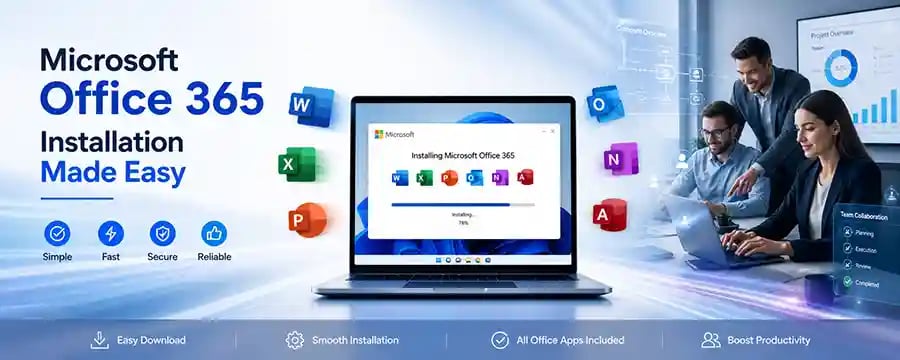
Genuine
Authentic Microsoft Software Solutions at Unbeatable Prices, Instant Delivery, Trusted Worldwide.
Support & Contact
Newsletter
customercare@genuinesoftwarekeys.com
+960 796 4737
© 2026. Genuine Software Keys. All rights reserved.
100% Genuine Software


Genuine License Guaranteed






Instant Delivery
Secure Payments
24/7 Customer Support
via Email
SSL Encrypted
We’re Here Anytime


Software Keys
Subscribe Now & Unlock Exclusive Deals, Special Discounts, and the Latest Offers.
Available 24/7 – Get a Response Within 2 Minutes, Anytime You Need Us.
Popular Products


We Accept




✔ No Spam
✔ Special Offers
✔ Early Access Details
SSL Secured


Your data is safe with us
Delivery Policy | Terms and Conditions
Microsoft Office 365 Professional Plus